


How Free Music Search Sites Work: A First-Timer’s Walkthrough
How Free Music Search Sites Work: A First-Timer’s Walkthrough
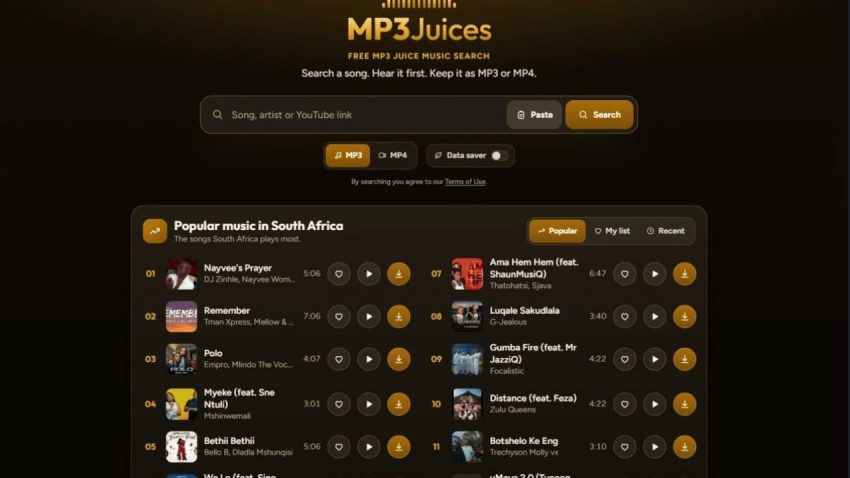
You open a music site for the first time, see a single search box, and wonder where the buttons actually are. That moment of hesitation is normal, and this walkthrough is built around it. A free music search site such as mp3juices.art works like a search engine for songs: you type a name, pick a result, listen to a preview, and only then decide whether to save an MP3 or MP4 file. No account, no installation, and no complicated menus stand between you and the search box.
The short answer to what these sites do is simple: they help you find audio and video files by searching, then offer a download option for the format you choose. The rest of this guide walks through that process in order, from the first search to the final saved file, so a first-time visitor knows exactly what each screen is asking for.
What a Free Music Search Site Actually Does
It helps to separate the three jobs these platforms perform. First, they search: a query goes out and a list of matching tracks comes back, usually with titles, artists, durations, and sometimes album artwork. Second, they preview: you can play a song in the browser before committing to a download, which saves time and storage. Third, they convert and deliver: the same result can often be saved as audio or video depending on what you need.
That three-part flow is the whole product. There is no library to build, no subscription tier to unlock, and no software to install. The site is a search and delivery layer, not a streaming service with a catalog you browse for hours. You arrive with something in mind, find it, and leave with a file.
Because nothing is stored on your device until you choose to download, the experience stays light. The trade-off is that results depend entirely on what the search index can surface, so a very obscure track may return fewer matches than a popular one. Knowing that upfront prevents the frustration of assuming a blank result means the song does not exist anywhere.
Step One: Running Your First Search
The homepage is intentionally bare, and the search field is the main event. Type what you remember: a song title, an artist name, or a combination of both. A query like an artist plus a track name usually narrows results faster than a title alone, especially when the title is a common word.
After you submit, a results list appears. Read it before clicking anything. Check that the artist matches, the duration looks plausible, and the title is not a cover, remix, or live version you did not want. This is the single most common beginner mistake: grabbing the first result without confirming it is the right recording.
If the list is long, refine rather than scroll endlessly. Adding a second keyword, such as a year, an album name, or a featured artist, is faster than paging through dozens of near-identical entries. Precision in the query saves time later, and it also reduces the chance of downloading the wrong file.
Step Two: Previewing Before You Download
Previewing is the feature first-timers underuse most. Most result pages include a play control that streams a short sample or the full track in your browser. Use it. A thirty-second listen confirms the artist, the version, and the general audio quality before any file lands in your downloads folder.
This step matters because search results are text descriptions, and text can be misleading. A title may match while the recording is a different edit, a karaoke version, or a low-bitrate upload. The preview is your quality check, and it costs nothing but a few seconds.
Previewing also helps you decide on format. If you only need background audio, an MP3 is enough. If the result is a music video or a performance you want to watch, the preview tells you whether the visual is worth saving as MP4. Listen first, choose second is the habit that keeps your downloads folder clean.
Step Three: Choosing Between MP3 and MP4
Once you have confirmed the right result, the site typically offers format options. The choice is straightforward once you know what each format is for.
| Format | Best for | What you get |
|---|---|---|
| MP3 | Music players, phones, offline listening | Audio only, small file size |
| MP4 | Music videos, performances, visual content | Audio plus video, larger file size |
Pick MP3 when you want a portable audio file that plays anywhere. Pick MP4 when the visual matters or when the source is a video rather than a studio track. There is no wrong answer, only a mismatch between the format and how you plan to use the file.
Before you confirm, glance at the quality setting if one is offered. Higher bitrates mean better sound and bigger files; lower bitrates save space at some cost to clarity. For casual listening on earbuds, a middle setting is usually a sensible balance. Match the file to the device you will actually play it on, and you avoid both wasted storage and disappointing audio.
Step Four: Saving Results and Building a Personal List
The download itself is the least complicated part: choose the format, confirm, and wait for the file to finish. Larger MP4 files take longer, so give the progress indicator a moment rather than clicking repeatedly. Repeated clicks can queue duplicate downloads and clutter your folder.
Where these platforms add real convenience is in the small organizational features. A personal list lets you collect tracks you found interesting without downloading them immediately, which is useful when you are exploring an artist and want to compare several songs later. Genre and artist browsing, plus charts, give you a starting point when you do not have a specific title in mind.
There is also a data saver mode for people on limited connections. It reduces how much data the site uses while you search and preview, which matters on mobile networks or metered plans. Turn it on when bandwidth is tight and you can still browse without burning through your allowance.
A practical routine for first-timers: search, preview, add promising tracks to your list, then download only the ones you keep. This keeps storage tidy and turns a one-off search into a small, organized collection over time.
Closing Tips for a Smooth First Experience
Start with specific queries and loosen them only if results are thin. Confirm the artist and version before downloading, and always preview when the option exists. Keep your downloads organized by format so audio files and video files do not mix, and check file sizes if storage is limited.
Treat the personal list as a scratchpad rather than a final library, and revisit it before downloading in bulk. Finally, remember that these tools are search interfaces, not guarantees: availability varies by track, and a missing result simply means trying a different query or spelling. With those habits in place, a first visit to mp3juices.art becomes a simple, repeatable routine rather than a guessing game.
Leave a Reply